RowShare tables with formulas now open faster, up to 10x faster for the heaviest ones. In our post on linking tables, we said this was our next project: it went live on November 9, and there's nothing you need to do. It's also a good excuse to look at what RowShare formulas can do.
RowShare formulas, in practice
In RowShare, a formula is a column where each cell is calculated automatically from the other columns in the same row. You set it once, on the column, and it applies right away to every row in the table, including the ones a coworker adds tomorrow. No formula to copy down, and no row left out halfway through the table.
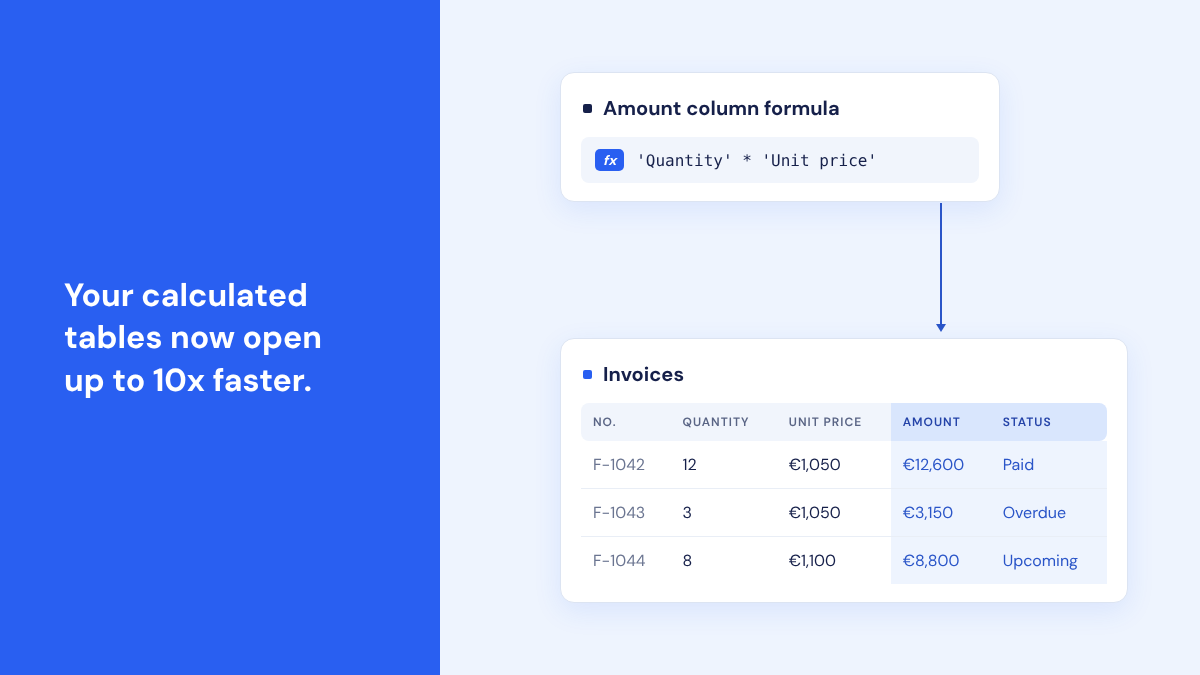
You refer to columns by name, in single quotes, rather than by cell address. Where Excel says =C2*D2, RowShare says:
'Quantity' * 'Unit price'If you know Excel, the syntax will feel familiar. RowShare offers about forty functions, including If, Switch, DateDiff, Round and Upper. They're built on Power Fx, the Microsoft formula language you'll also find in Power Apps, and RowShare supports a subset of it.
Creating a calculated column
- In your table, add a column and pick the "Formulas" type.
- Choose whether the formula returns text or a number, give the column a title and click Add.
- In the column settings, scroll down and type the formula.
To show the result as a percentage or as colored text, create a column with the display you want, then turn on the "Formula" option in its settings.
The guide How to use Formulas in your RowShare tables? covers every function, with examples.
Four formulas for an invoice table
Say you have an invoice table, with one row per invoice. If your columns have different names, just replace the ones in single quotes.
A two-rate commission: 5% of the amount for invoices over €10,000, 3% for the rest.
With({amount: 'Quantity' * 'Unit price'},
     If(amount > 10000, amount * 0.05, amount * 0.03))
With gives the amount a name, so you only write it once.
A payment status that updates itself every day:
If(Not(IsBlank('Payment date')), "Paid",
   Today() > 'Due date', "Overdue",
   "Upcoming")
As long as the payment date is empty, the invoice goes from "Upcoming" to "Overdue" the day after it's due, without anyone touching the row.
Days to payment, or days elapsed if the invoice is still open:
DateDiff('Invoice date', Coalesce('Payment date', Today()), TimeUnit.Days)The billing quarter, to group or filter by. The result looks like "Q4 2026":
"Q" & RoundUp(Month('Invoice date') / 3, 0) & " " & Year('Invoice date')A formula can also build on the result of another one. If the "Amount" column is already calculated, the commission is simply 'Amount' * 0.05. Splitting a calculation across several columns makes it easier to read, and you can hide the intermediate columns.
Calculating as a team: what changes compared to a shared Excel file
- One version: everyone works in the same table and sees the same result, recalculated as soon as a value changes. No more copies of the file floating around with their own numbers.
- No formula broken by an inserted row or a range that wasn't extended: the formula belongs to the column.
- Readable formulas: six months from now,
'Quantity' * 'Unit price'still makes sense, with no need to remember what was in column C. - No result overwritten by mistake: a calculated cell can't be edited by hand.
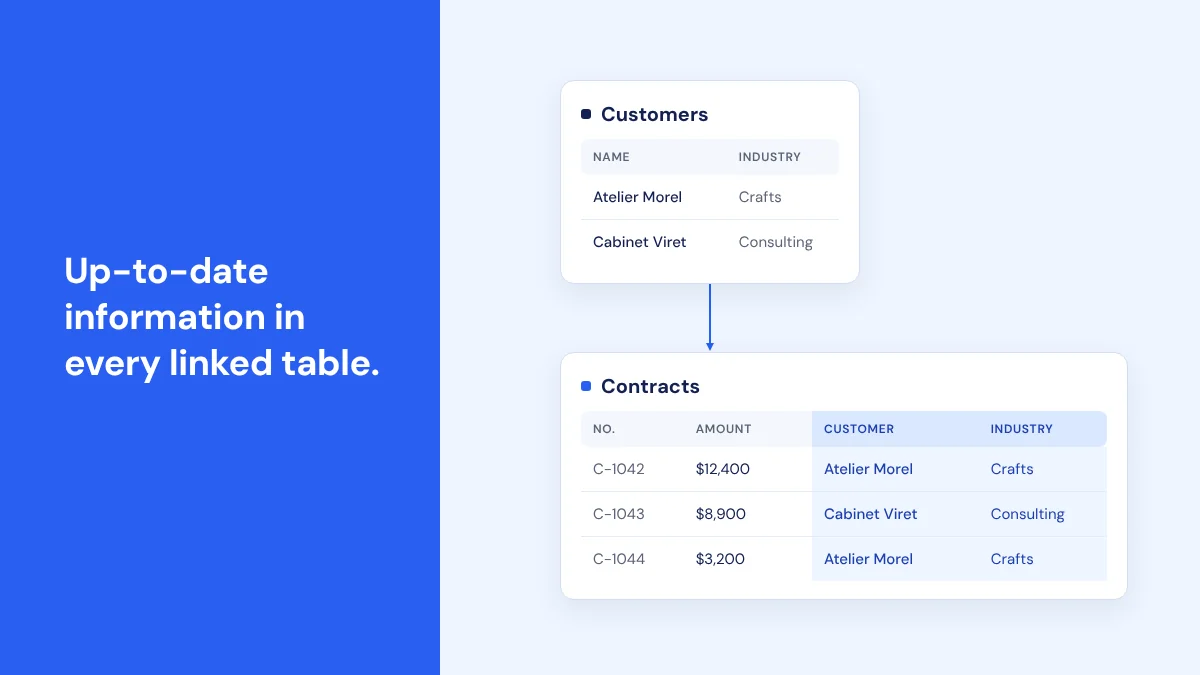
A RowShare formula works on its own row. It doesn't total a column: to add up several rows, analyzing your data shows the totals on screen. To display information from another table, linked tables take over. And a formula can use a column displayed from a linked table, just like any other column in its row.
What changed on the speed side
Tables with formulas now open faster. The more rows and formulas a table has, the bigger the gain.
- On the tables with the most formulas, opening is up to 10x faster. For example: a billing table with nearly 3,000 rows and 150 columns, 40 of them formulas, opened several hundred times a day. Its slowest loads took over 40 seconds; they now stay under 4 seconds.
- On mid-size tables with formulas, opening is 25 to 45% faster.
- Tables without formulas don't change.
There's nothing to turn on: the speed boost is already live on your tables with formulas.
What's next
We keep measuring how long your tables take to open, to find what slows them down the most, and we'll report back here.
If you've never created a formula, start with a column you currently fill in by hand from other columns: an amount, a status, a delay. That's usually a good candidate. The formulas guide lists every available function. Stuck on a formula? Get in touch and we'll help you build it.
RowShare formulas: frequently asked questions
What is a formula in RowShare?
A RowShare formula is a "Formulas" column where each cell is calculated automatically from the other columns in the same row. The formula is set once for the whole column and applies to every row, including rows added later.
Can a RowShare formula add up a column?
No. A RowShare formula calculates one value per row, from the columns in that row: Sum('Amount') returns the row's amount, not the column total. To get a total across several rows, analyzing your data shows it on screen, and RowMerge or Zapier let you reuse it elsewhere.
Which functions can I use in a RowShare formula?
About forty, in five groups: numbers (Round, Max, Sum…), dates (Today, DateAdd, DateDiff…), text (Upper, Left, Substitute…), logic (If, Switch, With…) and value tests (IsBlank, IfError…). The full list, with examples, is in the formulas guide.
Can a formula use the result of another formula?
Yes. A Formulas column can refer to another Formulas column. That lets you split a calculation into steps, one column per step, and hide the intermediate columns.
Do I need to do anything for my tables with formulas to open faster?
No, the improvement has been live since November 9. Tables with the most formulas open up to 10x faster, mid-size ones 25 to 45% faster, and tables without formulas don't change.